Embarking on a new PC setup can feel overwhelming, but the first week is critical for establishing a secure and efficient digital environment. By following a structured approach, you ensure that essential accounts are linked, updates are applied, and important files are safely transferred. This guide focuses on practical steps to integrate your new machine into your daily workflow without disrupting your existing routine or requiring immediate hardware changes. We will walk through the process of verifying system health, securing your identity, and populating your device with necessary tools.
new PC setup: a practical checklist
The foundation of any successful new PC setup begins with account configuration. Before diving into applications, you must ensure that your primary user profile is correctly established. This involves signing in with your preferred credentials to access personalized settings, cloud storage synchronization, and browser history. It is vital to enable two-factor authentication immediately if prompted by the operating system. This simple step adds a layer of security that protects your data from unauthorized access. Additionally, review the privacy settings within your account dashboard. Adjusting these controls ensures that your personal information is shared only with intended parties. Do not rush this phase; take time to verify that recovery emails and phone numbers are up to date. These details serve as safety nets if you ever lose access to your primary login method.
Once accounts are secure, the next priority on your checklist is system updates. A fresh installation often comes with the latest operating system version, but it may still require patching to address known vulnerabilities or improve performance. Navigate to the settings menu and initiate a full update cycle. This process ensures that security protocols are current and that compatibility issues with new software are minimized. During this time, your computer might restart several times, which is normal. Allow sufficient time for these processes to complete without interruption. After updates finish, reboot the device one final time to clear any temporary files generated during installation. Checking for driver updates is also prudent, though many modern systems handle this automatically. Verifying that graphics and audio drivers are functioning correctly prevents unexpected glitches later on.
With the system foundation solidified, you should focus on file checks and data migration. If you have an old computer or external drives containing important documents, photos, or work files, now is the time to transfer them. Use a reliable cable or wireless connection to move data in batches. Organize your folders immediately upon arrival; create a logical structure for projects, personal media, and backups. Do not simply dump all files into one directory, as this makes retrieval difficult later. Label subfolders clearly and consider using cloud storage services to maintain an offsite copy of critical documents. This redundancy protects against hardware failure. Test the integrity of transferred files by opening a few randomly selected documents or images to ensure they opened correctly during the transfer process.
The third major component of your new PC setup involves installing essential applications. While some software comes pre-installed, it is rarely sufficient for professional or personal use. Identify the core tools you need daily, such as web browsers, communication platforms, productivity suites, and password managers. Install these one by one to avoid system clutter. Be cautious of bloatware that may have been included during installation; review the installed programs list and uninstall anything unfamiliar or unnecessary. Configure each application according to your preferences. For example, adjust browser extensions to block trackers and enhance privacy. Set up email clients if you prefer desktop applications over web interfaces. Ensure that all software licenses are valid and that you have access to support documentation in case issues arise.
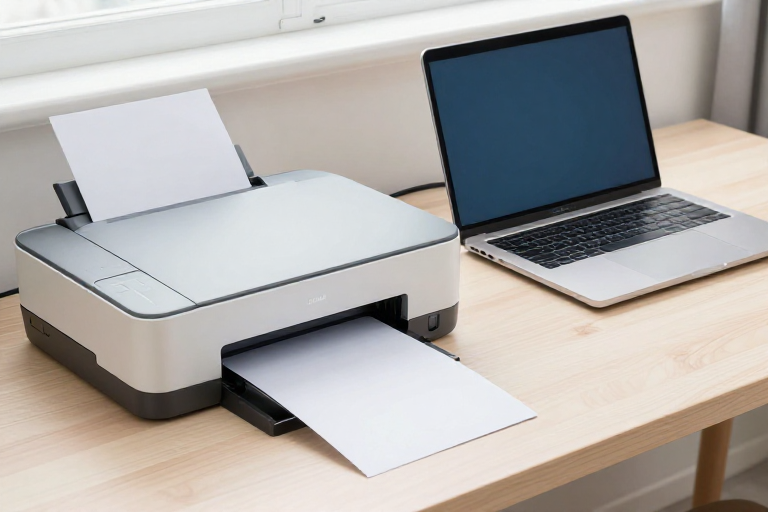
Finally, integrate everyday devices into your new ecosystem. Modern computers connect seamlessly with smartphones, tablets, smartwatches, and printers. Pair your mobile device to enable features like file sharing, notifications, and remote control. Verify that wireless networking is stable by testing the connection speed and reliability. Connect external peripherals such as monitors, keyboards, and mice to ensure they are recognized and functioning properly. If you use a printer, install the necessary drivers and test a print job immediately. This step ensures that your hardware works harmoniously with your new software environment. Take note of any compatibility issues and research solutions online if standard troubleshooting does not resolve them.
Securing Your Digital Identity
Security is paramount during the initial stages of ownership. Beyond enabling two-factor authentication, you should scan your system for malware using built-in tools or trusted third-party software. Run a full system scan to detect any lingering threats from previous devices or downloads. Change passwords for critical accounts like banking and email services immediately after logging in with your new machine. Avoid reusing old passwords across different platforms. Consider using a password manager to generate and store complex credentials securely. Regularly review active sessions within your browser settings to ensure no unauthorized users have access. Keep your operating system and applications updated automatically whenever possible to patch security holes promptly.
Optimizing Performance and Workflow
A smooth workflow depends on a well-optimized system. Adjust power settings to balance battery life and performance based on your usage patterns. Disable startup programs that slow down boot times. Customize your desktop environment to reduce distractions, such as hiding unnecessary icons or organizing widgets. Set up keyboard shortcuts for frequent tasks to increase efficiency. Explore built-in accessibility features if you require specific accommodations for vision or hearing. Regularly clear temporary files and cache data to maintain speed. Monitor resource usage to identify applications consuming excessive memory or processing power. Address any overheating issues by ensuring ventilation is not blocked.
Establishing Backup Routines
Data loss can happen at any time, so establishing a robust backup routine is essential. Configure automatic backups to an external drive or cloud service. Schedule these backups to occur during off-peak hours to minimize disruption. Test your backup restoration process periodically by restoring a few files to verify integrity. Document your backup strategy and store instructions in a secure location. Understand the difference between incremental and full backups to manage storage space effectively. Ensure that your backup solution is encrypted to protect sensitive information.
Frequently Asked Questions
How long does a typical new PC setup take?
The duration varies depending on the volume of data being transferred and the number of applications installed. A basic configuration might take two to three hours, while a comprehensive setup involving extensive file migration could extend to a full day.
Can I use my old computer alongside the new one?
Absolutely. You do not need to replace your existing laptop immediately. Use the new machine for primary tasks while keeping the older device as a backup or for secondary workloads until you are ready to upgrade further.
Is it safe to connect to public Wi-Fi during setup?
It is generally safer to avoid connecting to unsecured public networks during the initial configuration. Use your mobile hotspot or a trusted home network to prevent potential interception of sensitive data before security settings are fully hardened.
What should I do if an update fails?
If an update fails, restart the device and check for error messages online. Ensure your internet connection is stable. If issues persist, consult the manufacturer’s support resources or consider manually downloading the update package from a trusted source.
Do I need to reinstall all my applications?
Most applications can be reinstalled easily after updates. However, some specialized software may require specific drivers or configurations. Review compatibility lists before purchasing new versions of critical programs to ensure seamless integration with your updated system.
If you have questions about organizing your digital workspace or need guidance on software installation, contact CCDR Computers today for personalized support tailored to your needs.

Recent Comments